Maximizing Brackets Text Editor for Your Coding Projects
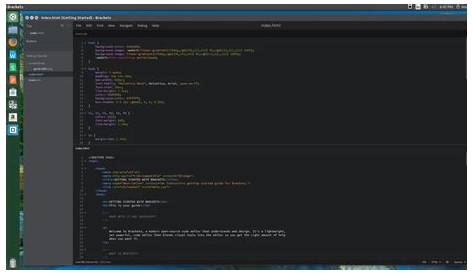
If you're a web developer looking for a reliable text editor that supports modern coding practices, Brackets is an excellent choice. It focuses specifically on web development, offering features like live previews and preprocessor support that enhance your coding experience. This article will explore Brackets' key features, installation process, and ways to customize it for optimal performance.
What makes Brackets a good choice for coding?
Brackets has several key features that appeal to web developers. One standout feature is live preview, which allows you to see changes in real-time as you edit your code. This eliminates the need to switch between the editor and the browser, significantly speeding up the development process. Just click the live preview button, and any edits made in Brackets will instantly reflect in your browser.
Another important feature is support for preprocessors like LESS and SASS. Brackets can compile your code on the fly, so you don’t have to run separate commands or processes. This integration streamlines your workflow, letting you focus on writing code rather than managing tools.
Brackets also fosters a community-driven approach. You can easily add extensions or plugins to enhance its functionality. With a variety of options available, you can customize the editor to fit your specific needs. This flexibility, along with its modern interface, makes Brackets suitable for both novice and experienced developers.
How do I install Brackets on my computer?
Installing Brackets is easy and works on various operating systems. Here’s a step-by-step guide:
1. Visit the official Brackets website to find the latest version available for download.
2. Select the version that corresponds with your operating system. Brackets supports Windows, macOS, and Linux, so choose the appropriate installer.
3. After downloading, open the installer. On Windows, you may need to grant permission for installation. On macOS, drag the Brackets icon to your Applications folder.
4. Follow the on-screen instructions to complete the installation, which typically involves agreeing to terms and confirming installation locations.
5. Once installed, launch Brackets and explore the initial setup options to tailor the editor to your preferences.
If you encounter issues, checking the Brackets community forums can provide solutions and troubleshooting tips.
What extensions should I add to Brackets?
Brackets has a variety of extensions that can significantly boost your productivity. Here are a few highly recommended ones:
- **Emmet**: This extension helps you write HTML and CSS faster using abbreviations that expand into full code snippets. It's especially useful for front-end developers looking to streamline their workflow.
- **Brackets Beautify**: This tool formats your code neatly, making it easier to read and maintain. You can customize the formatting options to align with your coding style.
- **Preprocessor Support**: If you use preprocessors like SASS or LESS, this extension allows you to compile files directly within Brackets without needing external tools.
- **Git**: For those who use version control, the Git extension integrates basic Git functionality into Brackets, letting you manage repositories without leaving the editor.
To install these extensions, open Brackets and navigate to the Extensions menu. From there, you can search for and install any extension that meets your needs.
How can I customize Brackets to fit my needs?
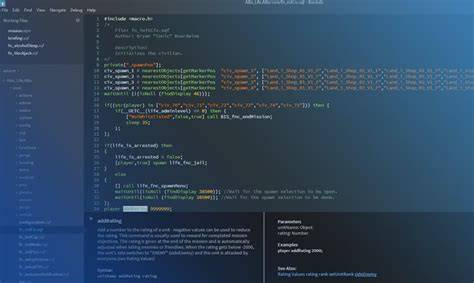
Brackets offers several ways to personalize your coding environment. Start by exploring the preferences menu, where you can adjust settings related to formatting, linting, and key bindings to suit your workflow.
You can also change the editor's theme to make it visually comfortable for long coding sessions. Various themes are available within the extensions menu, or you can create a custom theme if you prefer something unique.
Setting up your workspace is another crucial aspect of customization. You can arrange panels and split views to see multiple files at once. For instance, if you're editing both HTML and CSS, you can have both files open side by side for easier coordination.
The goal of customization is to streamline your process and minimize distractions. Experiment with different settings until you find what works best for you.
What are common issues users face with Brackets?
While Brackets is generally user-friendly, some common issues may arise. One frequent problem is performance lag, particularly with large files or multiple extensions. If you notice slowdowns, consider disabling extensions that you aren't using to optimize performance.
Another issue involves the live preview feature. Occasionally, users may find that changes do not reflect immediately in the browser. This can usually be resolved by refreshing the live preview or checking your file paths.
Some developers report challenges integrating Brackets with version control systems like Git. If you experience difficulties, ensure that the Git extension is correctly installed and configured. Consulting online forums can also provide specific troubleshooting tips.
Most issues can be resolved with some patience and community support.
Conclusion
Start by downloading and installing Brackets, then explore its live preview and preprocessor features to see how they can enhance your coding. Experiment with extensions to further customize the editor. Focus on creating a setup that works for you, and seek community resources when you encounter challenges. A well-configured Brackets environment can make coding not just easier, but also more enjoyable.
Frequently Asked Questions
Is Brackets a good text editor for beginners?
Yes, Brackets is very beginner-friendly. Its intuitive interface and features like live preview make it easy for new developers to see their changes in real-time.
Can I use Brackets for languages other than HTML, CSS, and JavaScript?
While Brackets is primarily designed for web development, you can use it for other languages as well. However, its features are most optimized for HTML, CSS, and JavaScript.
Are there any alternatives to Brackets?
Some popular alternatives include Visual Studio Code, Sublime Text, and Atom. Each has its own strengths, so it might be worth trying a few to see which you prefer.
How often is Brackets updated?
Brackets does not have a fixed update schedule, but the community actively maintains it, and updates are released periodically to improve features and fix bugs.
Can I use Brackets for collaborative coding?
Brackets does not natively support collaboration, but you can use extensions or pair it with version control systems like Git to work collaboratively with others.